Gildor's Homepage |


|
UE Viewer
Last update: 06.01.2022
Unreal Engine resource viewer (formerly Unreal Model Viewer) is a program for viewing and extracting resources from various games made with Unreal Engine. Sometimes the program is referenced as "umodel", the short of "unreal" and "model viewer".
Feature Highlights
- Loading packages from more than 300 games based on all Unreal engine generations
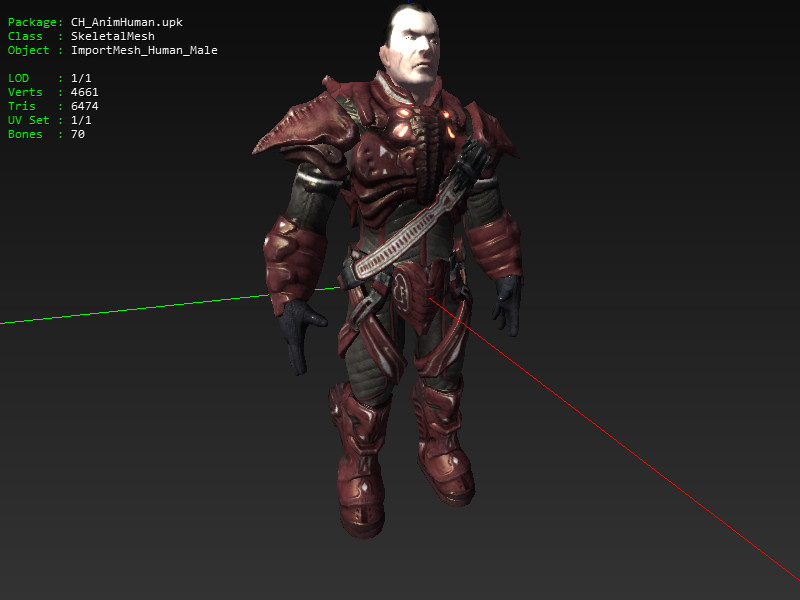
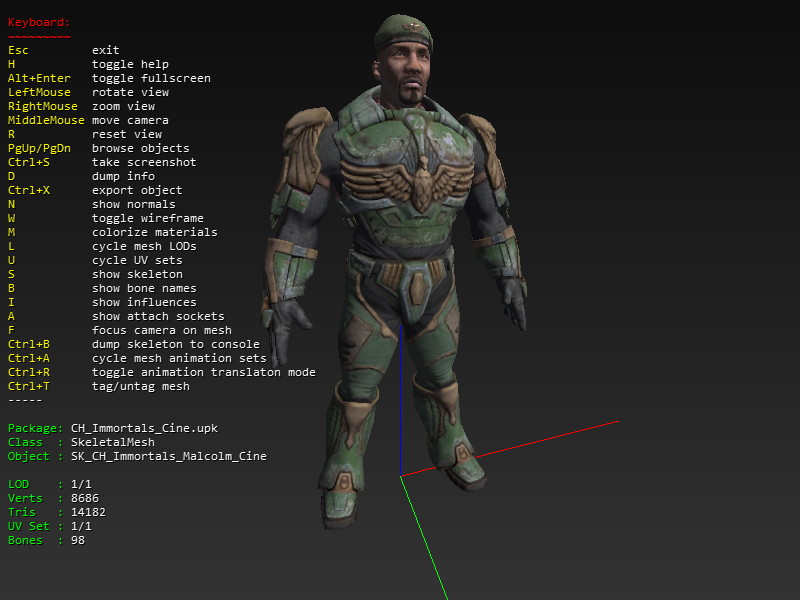
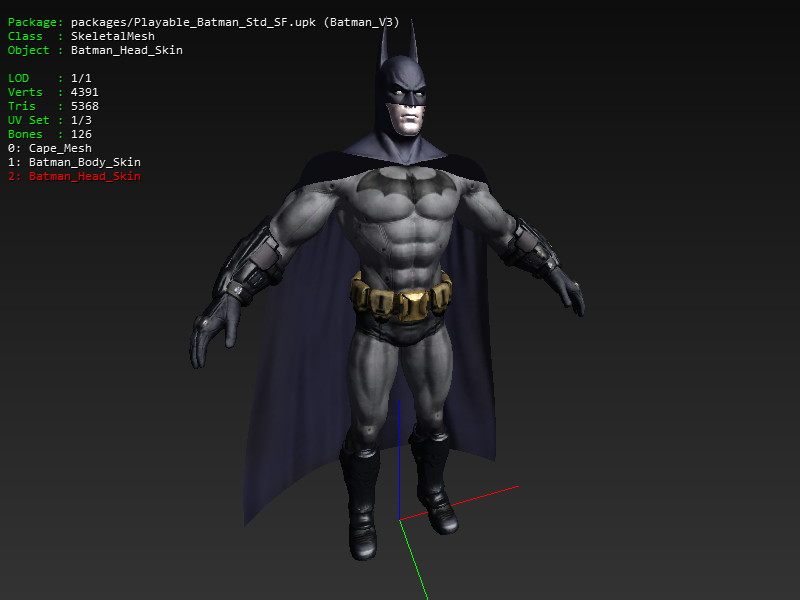
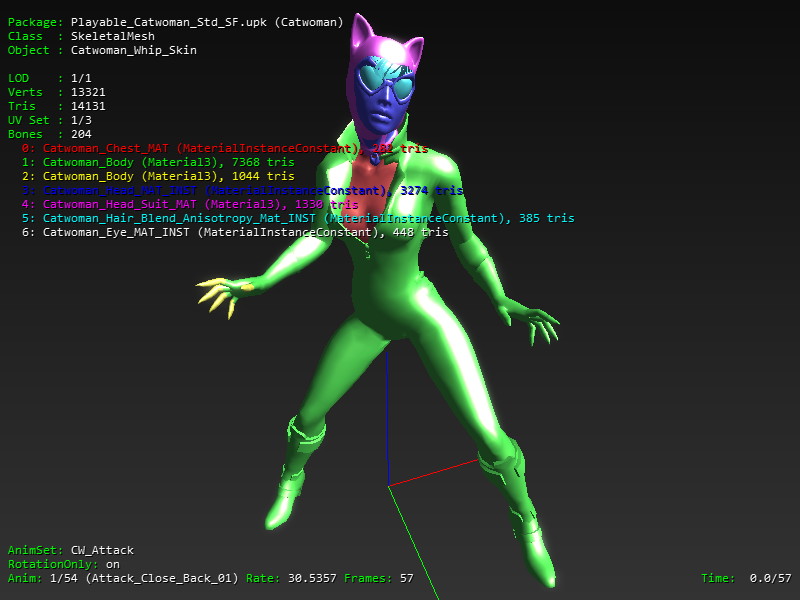
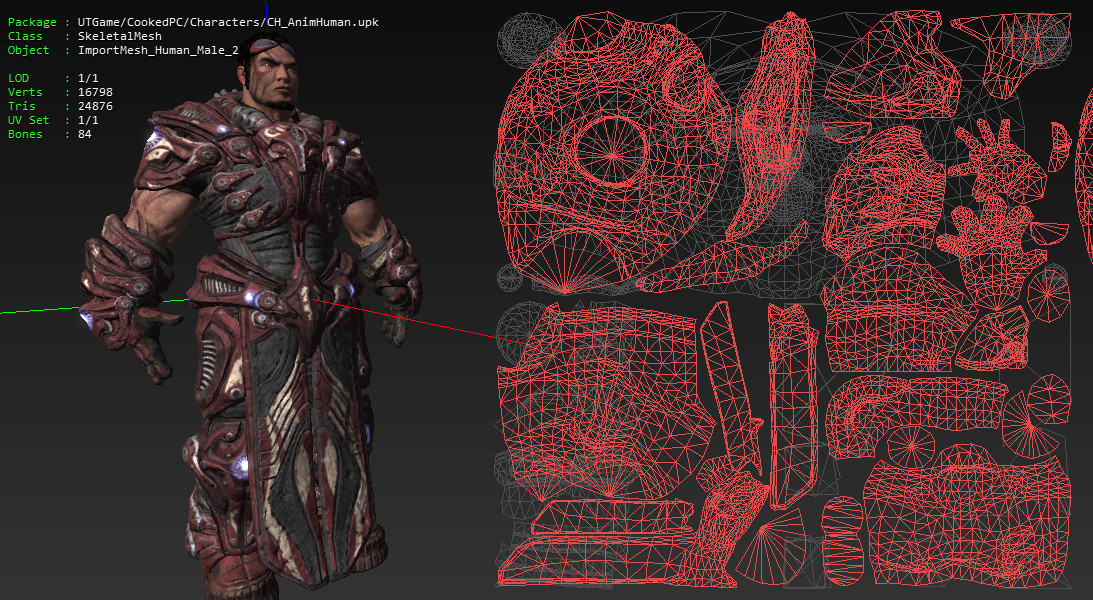
- Visualization of skeletal meshes with animations
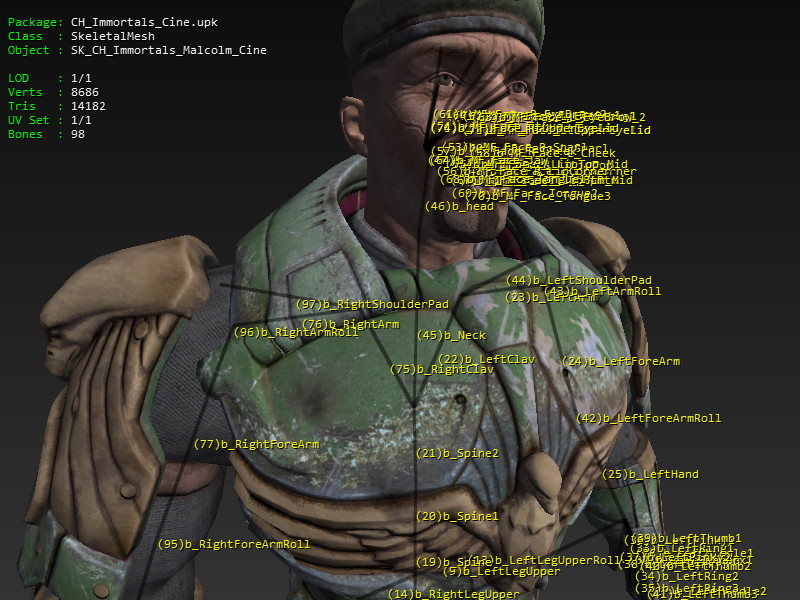
- Visualization of internal skeletal mesh information like skeleton hierarchy and binding vertices to the skeleton bones
- Visualizarion of vertex meshes
- Visualization of static meshes
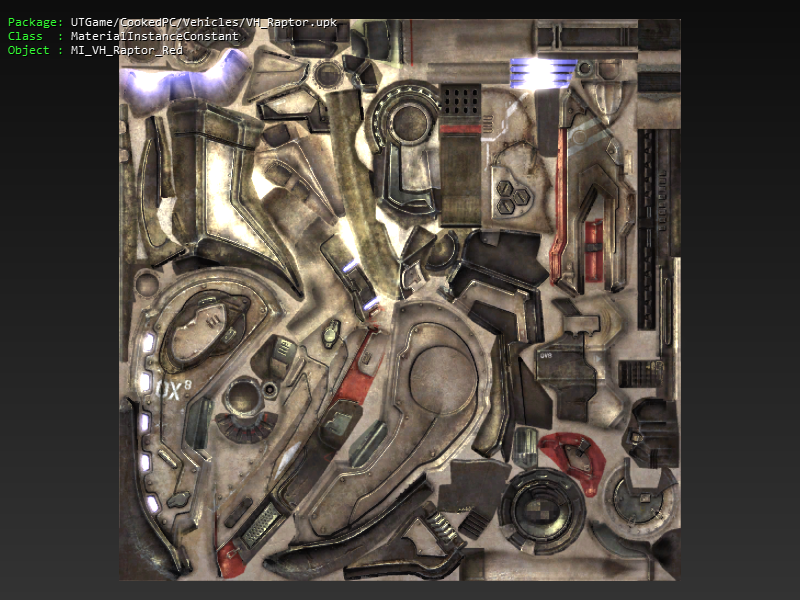
- Viewing supported material types and their internal structure
- Export of skeletal, vertex and static meshes and animations into formats supported by 3d modeling software and by Unreal engine
- Export textures into tga or dds format
- Export sounds, ScaleForm and FaceFX
|
|




System Requirements
- Windows OS or Linux
- CPU with SSE2 support
- SDL 2.0 (included into package for Windows)
- OpenGL 1.1 videocard (OpenGL 2.0 is recommended)
Restrictions
- Some material types are unsupported.
- Additive animations doesn't work.
- Linux version has no GUI yet, you should use command line to start UE Viewer.
Downloads
| Win32 version | Size 2.42 MB | Updated 7 July, 2023 - 13:12 | 1643209 downloads |
| Linux version | Size 539.22 KB | Updated 7 January, 2022 - 07:59 | 44454 downloads |
Support This Project
| Become a Patron! |
|

Source code
Source code of UE Viewer is available on GitHub. License is not determined yet.
Installation
Extract contents of zip archive to any directory, launch umodel.exe.
Command Line
ATTENTION! This site has a few tutorial videos and FAQ. It would be useful (especially for beginners) to watch them before starting to use UE Viewer. The links are available at the top of this page. Below UE Viewer is referenced as "umodel" for simplicity (it's executable file name).
Command line format:
umodel [options] package-name [object-name]
Major options:
| viewer options | |
| -meshes | exclude non-mesh objects from browsing in viewer mode |
| exporter options | |
| -export | start umodel in exporter mode |
| -out=path | set directory for exported files |
| -dds | export DXT textures in DDS format |
| -uncook | UE3: umodel would export files to the directories corresponding to their package names where objects were placed by designer before cooking |
| -groups | do not use object type (SkeletalMesh, Texture2D etc) for export directory name but use object's group name instead |
| -sounds | allow sound export |
| -3rdparty | allow ScaleForm and FaceFX export |
| common options | |
| -path=path | set path to the game files; you should enclose path into double quotes when it has spaces inside |
| -noanim/-nomesh/-nostat/-notex | disable loading of animation/SkeletalMesh/StaticMesh/textures (could be necessary because of umodel incompatibility with particular game) |
| -game=game | tells to umodel that opening file belongs to the particular game; it could be required when umodel is not able to detect game by itself; to get list of available game tags launch umodel with -taglist option |
| -pkg=package | load additional package (you may specify any number of -pkg=... options) |
| -ios/-ps3 | tells to umodel that you are opening file which was cooked for iOS or PS3 platform (all other platforms are detected automatically) |
For full option list launch umodel without arguments.
All options are order-independent. Package name is a full or short name of package. Using short name usually requires -path=... option. Check examples below for explaination.
Command line examples:
umodel -path=c:/games/ut2004 HumanMaleA
display all packaged objects from HumanMaleA
umodel -path=c:/games/ut2004 -meshes HumanMaleA
display all meshes from HumanMaleA
umodel -path=c:/games/ut2004 HumanMaleA MercMaleD
display mesh MercMaleD from package HumanMaleA
umodel -path=c:/games/ut2004 -export HumanMaleA MercMaleD
export SkeletalMesh MercMaleD from HumanMaleA package
umodel -path=c:/games/ut2004 -export HumanMaleA MercMaleD
export SkeletalMesh MercMaleD and all used resources (animation, textures etc)
umodel -path=c:/games/ut2004 -export HumanMaleA BipedMaleA
export animations (MeshAnimation) BipedMaleA from HumanMaleA package
umodel -path=c:/games/ut2004 -export HumanMaleA
export all supported objects from HumanMaleA package
umodel -path=c:/games/ut2004 -export *.ukx
export everything from all ukx files
umodel -path=c:/games/ut2004 -list HumanMaleA
list contents of HumanMaleA package (object and class names)
umodel -list c:/games/unreal/music/QueenSong.umx
list contents of QueenSong.umx package from Unreal1. Here is package name specified with full file path.
User Interface
Program controlled mostly with keyboard. To get key assignment help, press <H> (help) key. Main keys:
| ESC | exit from program |
| H | get key help information |
| PgUp, PgDown | switching between loaded objects |
| [, ] | switch between mesh animations |
| <, > | rewind animation time backward/forward |
| Space, X | start animation playback (single and looped) |
| Ctrl+A | switch between different animation sets (required for viewing UE3 animations) |
| Ctrl+T | tag/untag mesh for multipart mesh rendering |
| F | focus camera on mesh |
| Ctrl+X | export current displaying object |
| Ctrl+S/Alt+S | take a screenshot; when Alt+S is used backgound will be made transparent |
| Ctrl+Q | toggle displaying of texts and coordinate system axis |
You can rotate camera holding left mouse button, zoom with right mouse button, or pan camera (move alongside screen plane) with middle mouse button.
There is a nice demonstration of viewer capabilities and program control in tutorial videos.
Please do not copy-paste this text to your sites of forums! Post a link to this page instead. The same should also be applied to the download links.